> ## Documentation Index
> Fetch the complete documentation index at: https://docs.pornx.co/llms.txt
> Use this file to discover all available pages before exploring further.
# Generate images using saved characters
> Generate AI images featuring your saved PornX characters by selecting them in the image generator and writing a prompt for the scene.
Once you have a character saved, you can use them in any image generation session. The model applies their appearance automatically — your prompt covers everything else.
## How to generate
Open the [Image Generator](https://pornx.co/create). In the Characters panel, select the character you want to use — they'll be highlighted with an orange border. Then write your prompt, pick a resolution, and tap **Generate**.
Each generation costs 2 tokens.
Select a character from the panel on the left. The active character is highlighted with an orange border.
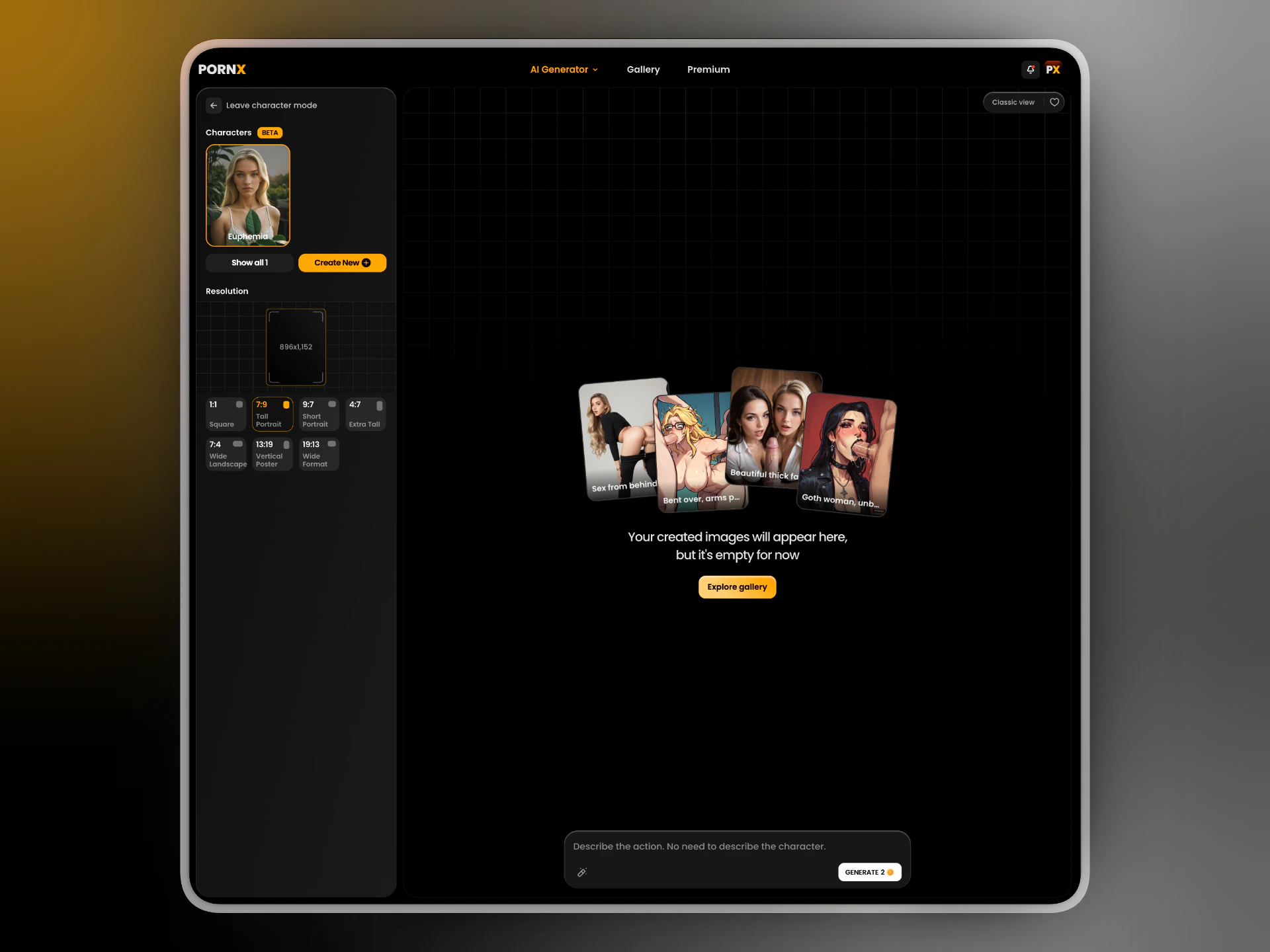 With a character selected, describe the scene or action only. The character's appearance is already defined.
Describing the character again can confuse the model and produce inconsistent results.
With a character selected, describe the scene or action only. The character's appearance is already defined.
Describing the character again can confuse the model and produce inconsistent results.
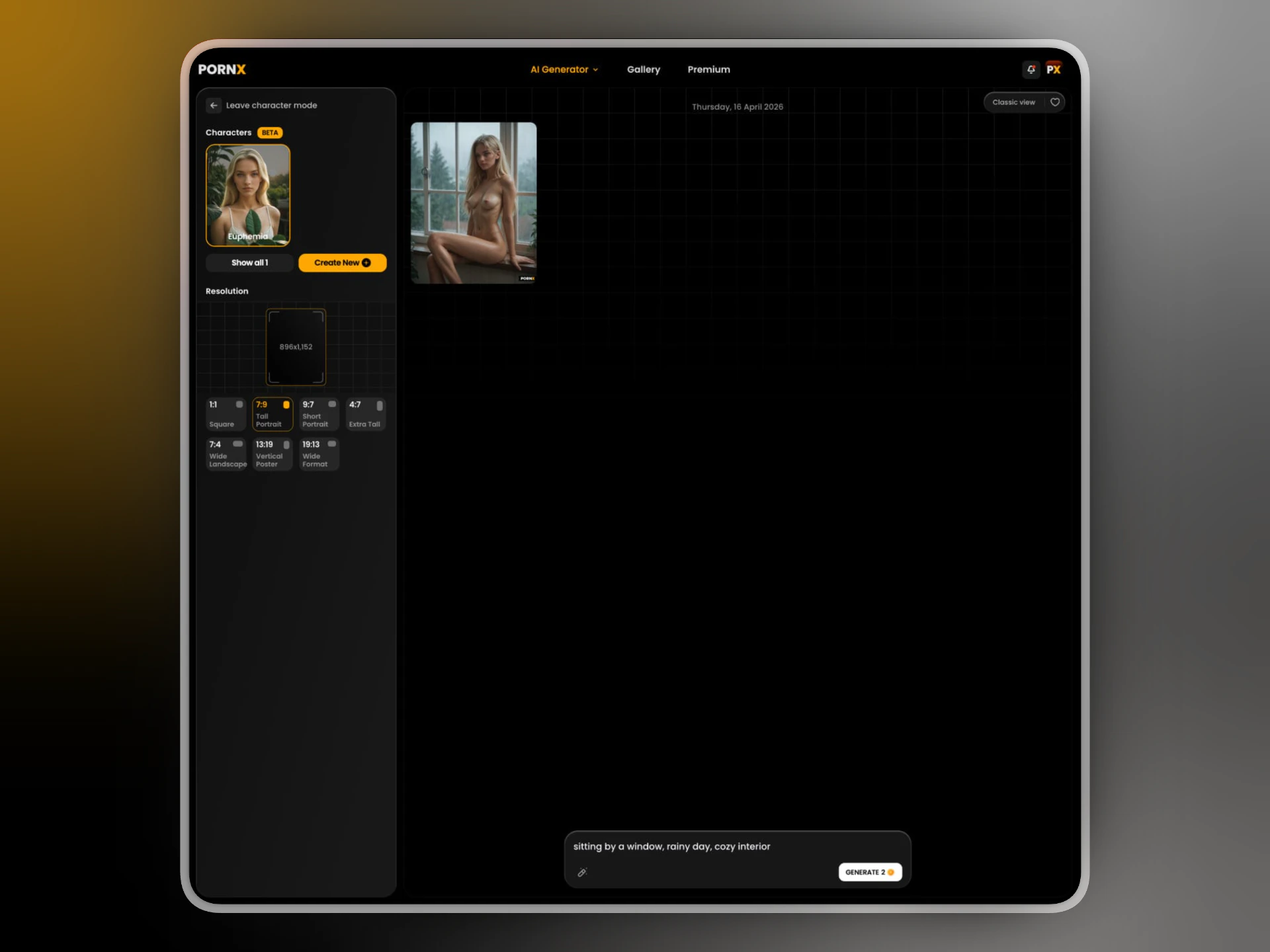 ## Resolution
Character generations support all standard resolutions. For portraits, **Tall Portrait (7:9)** tends to work best. For full-body shots, try **Short Portrait (9:7)** or **Extra Tall (4:7)**.
See [Parameters](/image-generation/parameters) for the full resolution reference.
## Tips
* Keep prompts focused on lighting, setting, and action — the character handles the rest.
* If the result drifts from the character's appearance, try a shorter prompt.
* Use **Show all** to browse all saved characters if you have more than two.
## What's next
Turn a generated image into a short video clip.
Build another persona from scratch.
## Resolution
Character generations support all standard resolutions. For portraits, **Tall Portrait (7:9)** tends to work best. For full-body shots, try **Short Portrait (9:7)** or **Extra Tall (4:7)**.
See [Parameters](/image-generation/parameters) for the full resolution reference.
## Tips
* Keep prompts focused on lighting, setting, and action — the character handles the rest.
* If the result drifts from the character's appearance, try a shorter prompt.
* Use **Show all** to browse all saved characters if you have more than two.
## What's next
Turn a generated image into a short video clip.
Build another persona from scratch.