> ## Documentation Index
> Fetch the complete documentation index at: https://docs.pornx.co/llms.txt
> Use this file to discover all available pages before exploring further.
# Characters: build reusable AI personas
> Build reusable AI characters on PornX with consistent appearance across image and video generations using the character creator tool.
Characters are saved personas you build once and reuse across generations. Instead of describing a person in every prompt, you select a Character — the model handles the appearance, you handle the action.
Characters are available to Premium subscribers. Free accounts can view existing Characters but cannot create new ones.
## Creating a character
Go to the [Image Generator](https://pornx.co/create) and tap **Create New** in the Characters panel.
Character creation takes four steps:
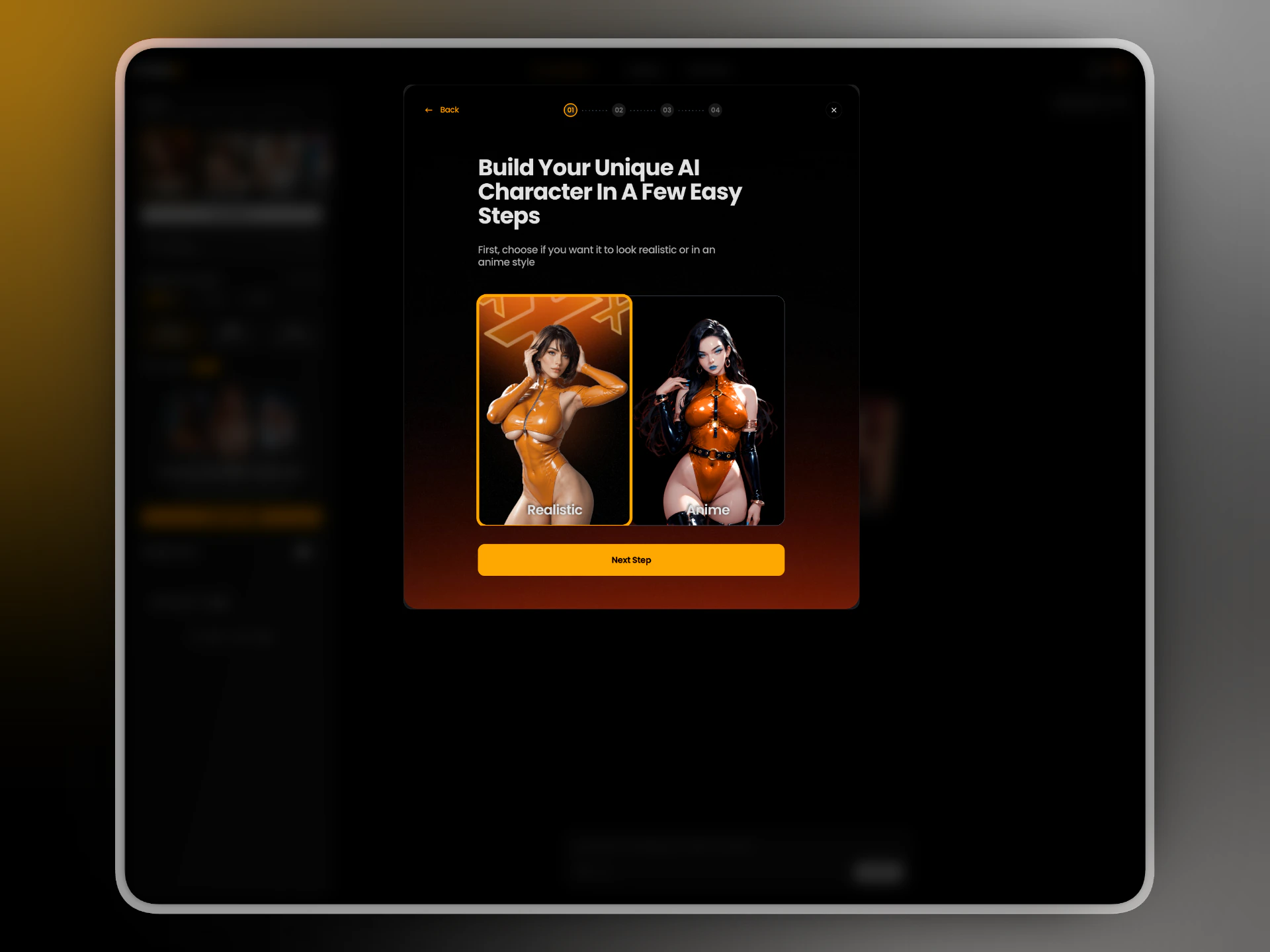
First, pick a visual style for your character — **Realistic** for photographic output, **Anime** for illustrated. This choice affects how all other attributes are rendered.
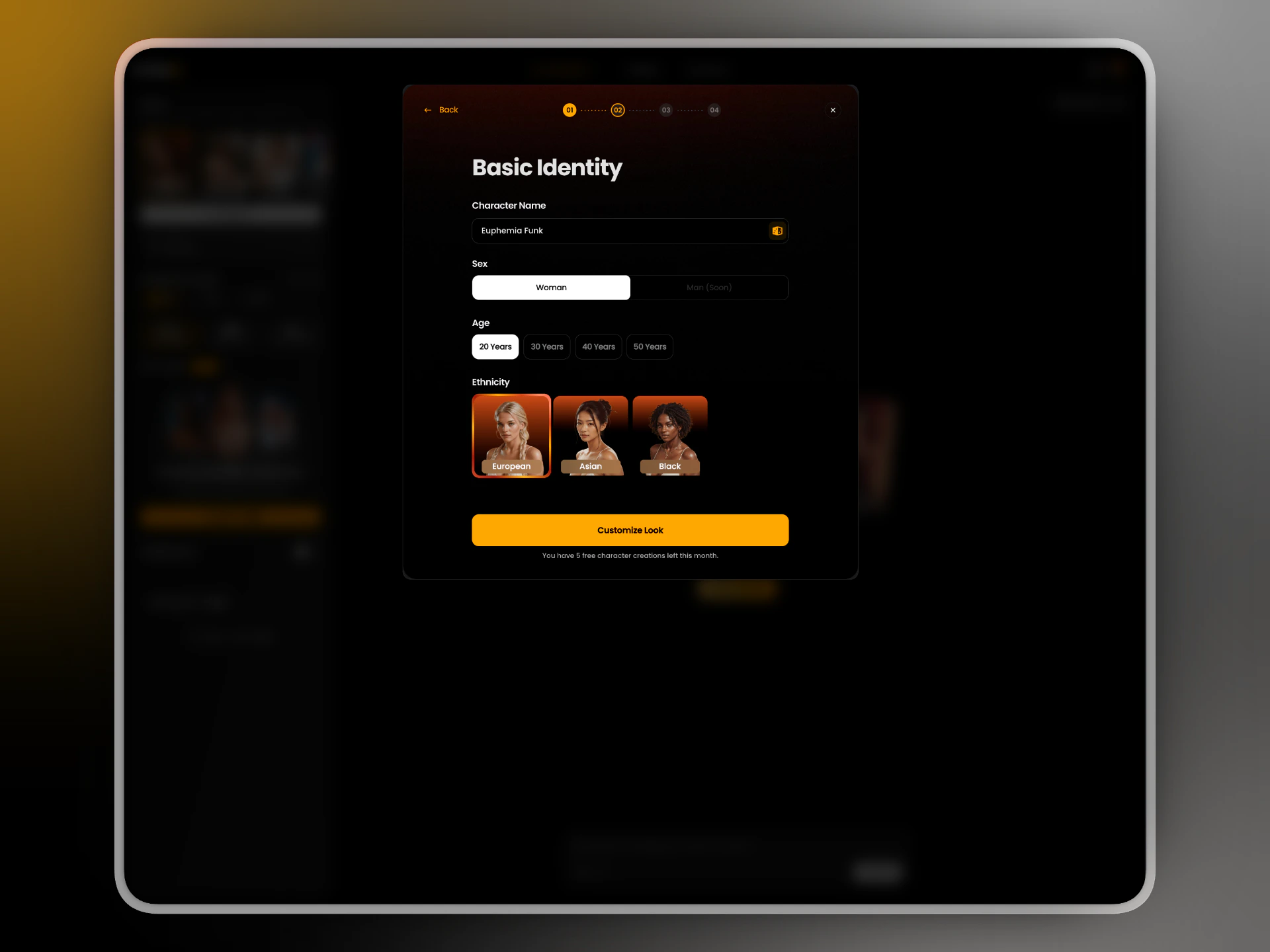
 Set the character's name, sex, age, and ethnicity. The name is just a label for your own reference — it doesn't affect generation. Use the dice icon to generate a random name.
Male characters are coming soon. Female only for now.
Set the character's name, sex, age, and ethnicity. The name is just a label for your own reference — it doesn't affect generation. Use the dice icon to generate a random name.
Male characters are coming soon. Female only for now.
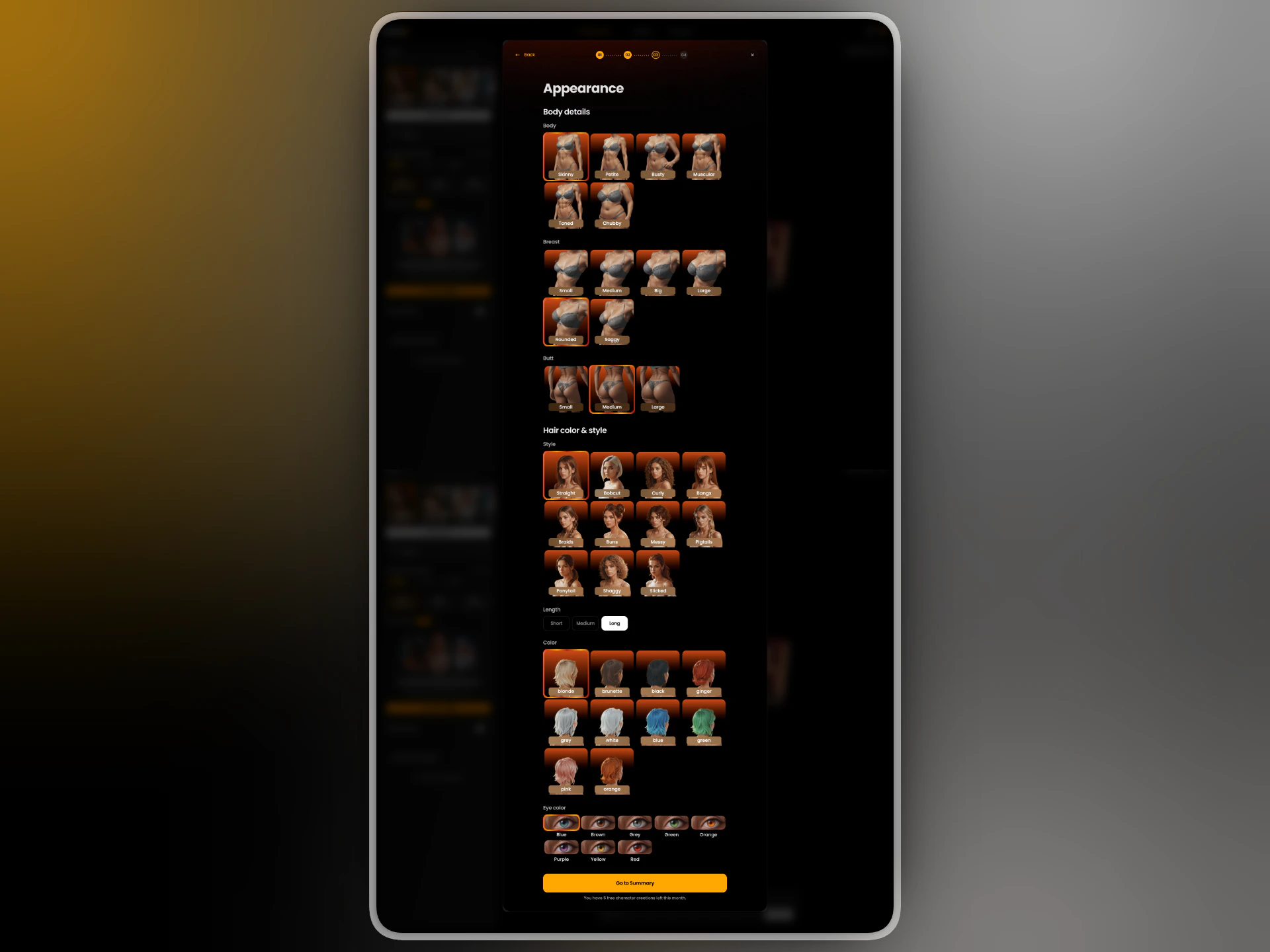
 Choose body type, breast size, butt size, hair style, hair length, hair color, and eye color. Each option shows a visual reference so you know exactly what you're selecting.
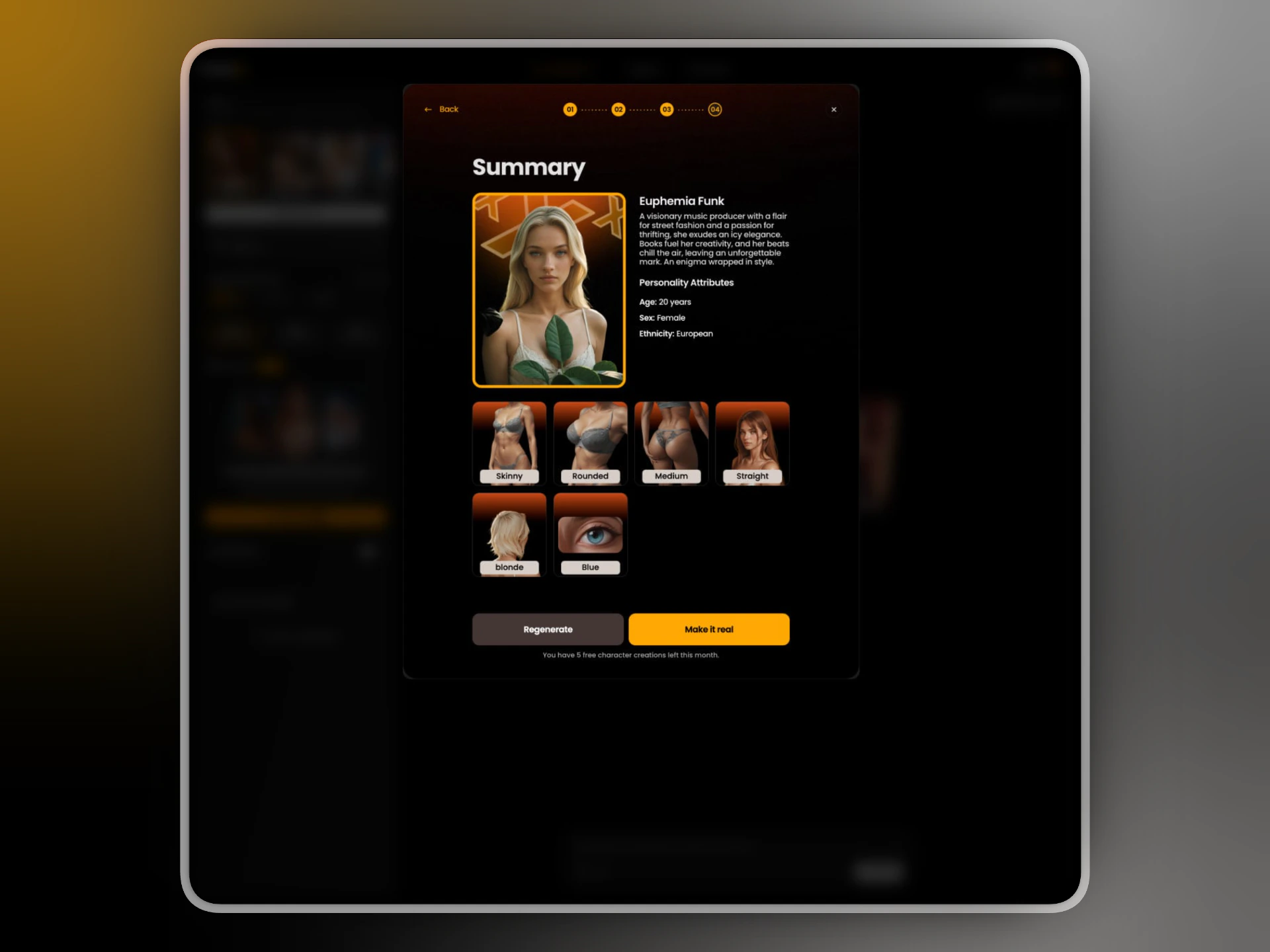
 Review all selected attributes and the generated preview image. If the result doesn't match what you had in mind, tap **Regenerate** — regeneration is currently free. When satisfied, tap **Make it real** to save the character.
 ## Creation limits
Premium subscribers get **5 free character creations per month**. The remaining count is shown at the bottom of every step.
## Using a character
Once created, your characters appear in the Characters panel on the [Image Generator](https://pornx.co/create) page. Select one before generating — the selected character is highlighted with an orange border.
When a character is selected, **your prompt should describe the action or scene only** — not the person. The model reads the character's appearance from the saved profile.
*✓ lying on a bed, soft morning light, white sheets* *✗ a redhead woman with blue eyes lying on a bed*
See [Generating with Characters](/characters/generate) for prompt tips and examples.
## What you can do with characters
Create photos and illustrations featuring your character.
Turn a character image into a short video clip.
## Creation limits
Premium subscribers get **5 free character creations per month**. The remaining count is shown at the bottom of every step.
## Using a character
Once created, your characters appear in the Characters panel on the [Image Generator](https://pornx.co/create) page. Select one before generating — the selected character is highlighted with an orange border.
When a character is selected, **your prompt should describe the action or scene only** — not the person. The model reads the character's appearance from the saved profile.
*✓ lying on a bed, soft morning light, white sheets* *✗ a redhead woman with blue eyes lying on a bed*
See [Generating with Characters](/characters/generate) for prompt tips and examples.
## What you can do with characters
Create photos and illustrations featuring your character.
Turn a character image into a short video clip.