
How to generate
Open the Image Generator. In the Characters panel, select the character you want to use — they’ll be highlighted with an orange border. Then write your prompt, pick a resolution, and tap Generate. Each generation costs 2 tokens.1
Choose your character
Select a character from the panel on the left. The active character is highlighted with an orange border.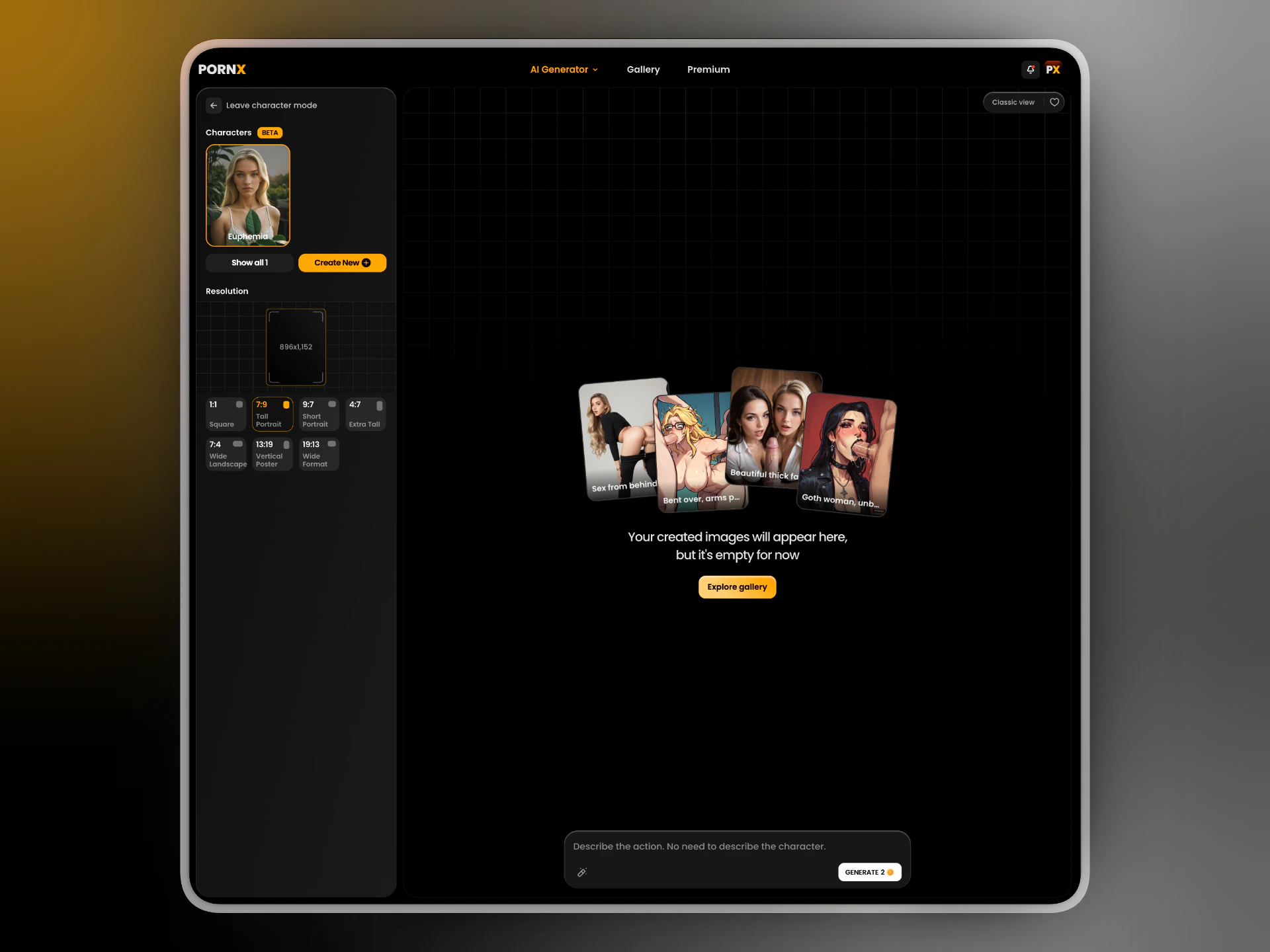
2
Write a prompt
With a character selected, describe the scene or action only. The character’s appearance is already defined.Describing the character again can confuse the model and produce inconsistent results.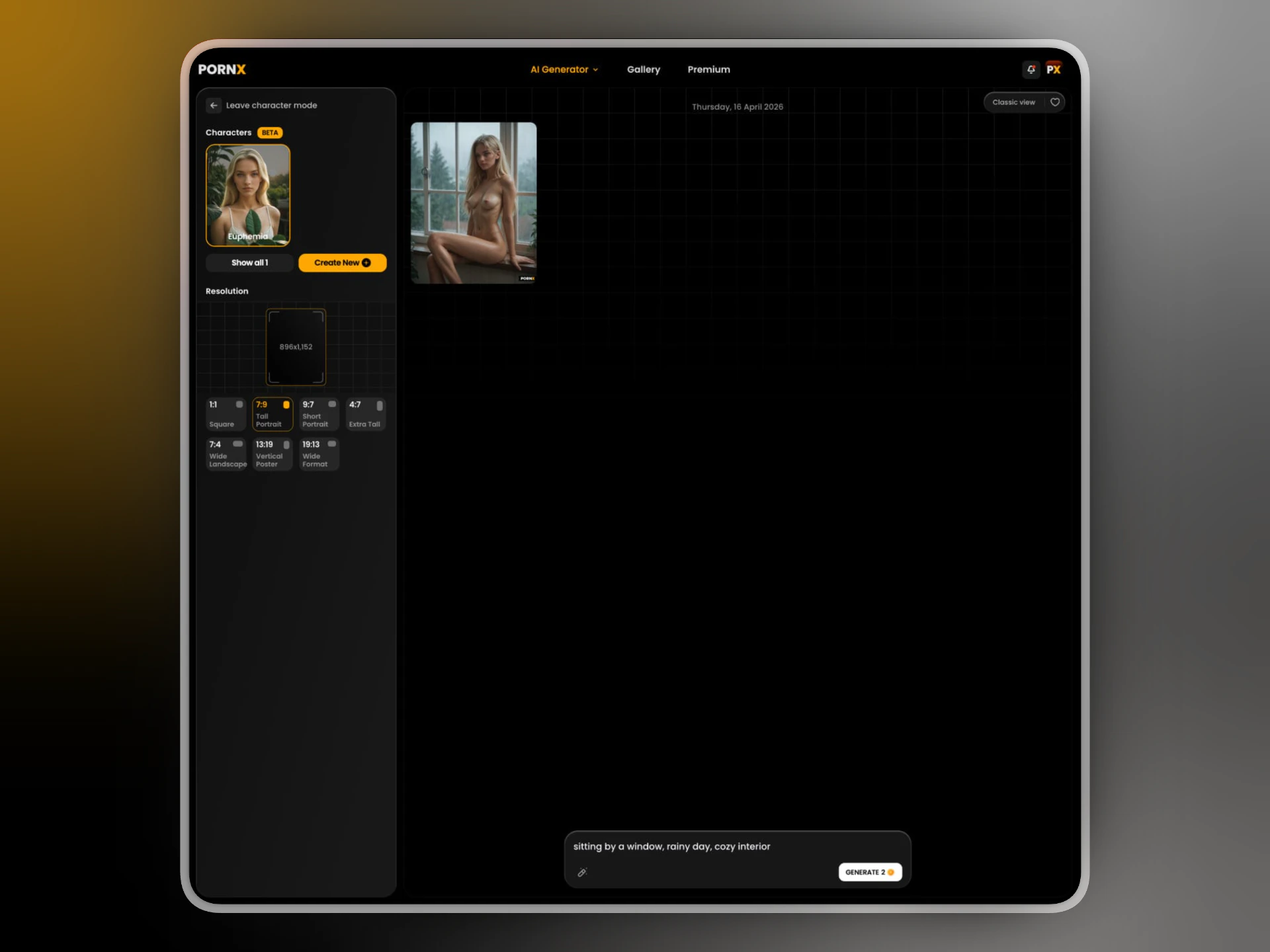
sitting by a window, rainy day, cozy interior
Resolution
Character generations support all standard resolutions. For portraits, Tall Portrait (7:9) tends to work best. For full-body shots, try Short Portrait (9:7) or Extra Tall (4:7). See Parameters for the full resolution reference.Tips
- Keep prompts focused on lighting, setting, and action — the character handles the rest.
- If the result drifts from the character’s appearance, try a shorter prompt.
- Use Show all to browse all saved characters if you have more than two.
What’s next
Animate your character
Turn a generated image into a short video clip.
Create a new character
Build another persona from scratch.