
- PC
- Mobile
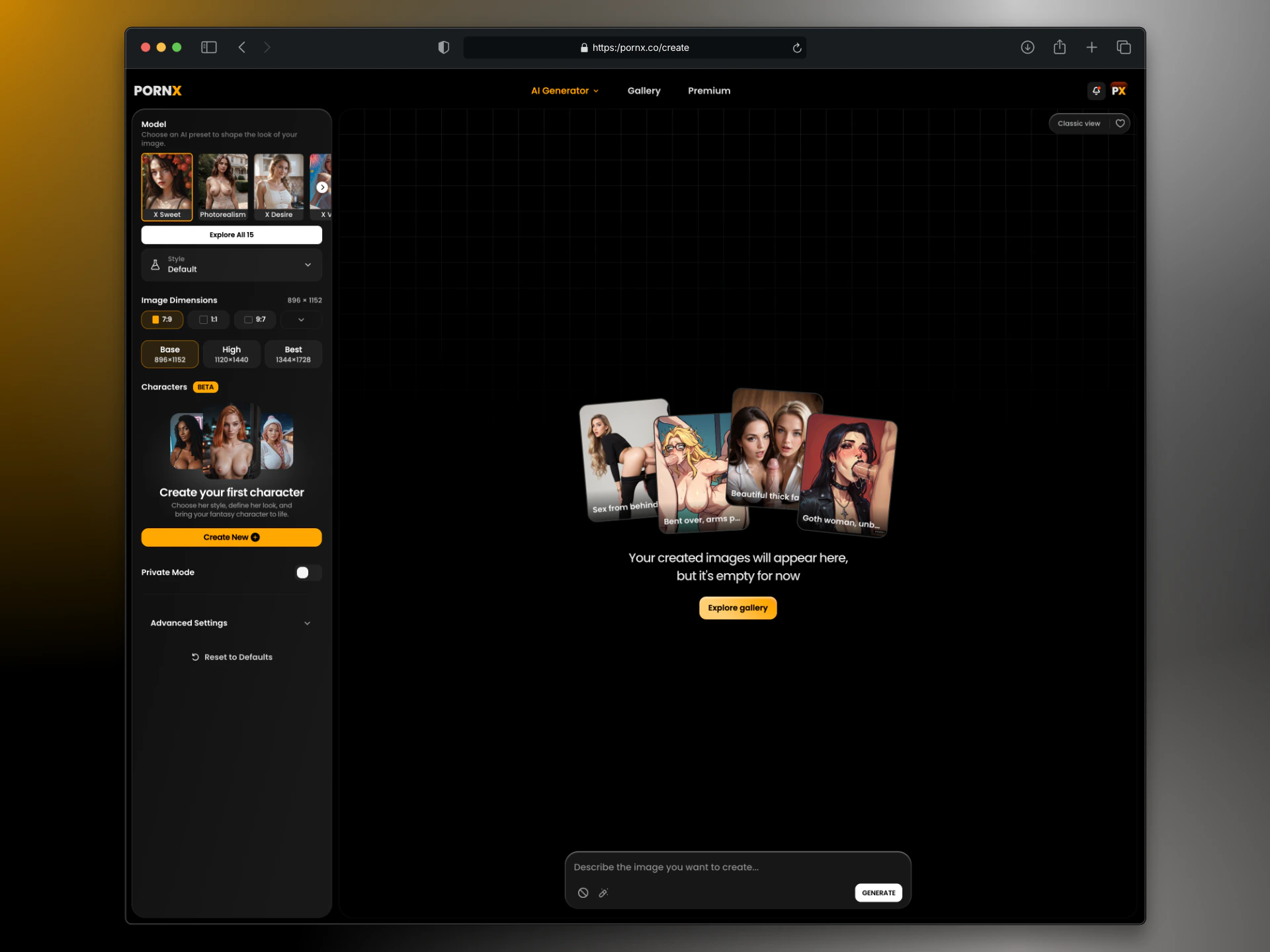
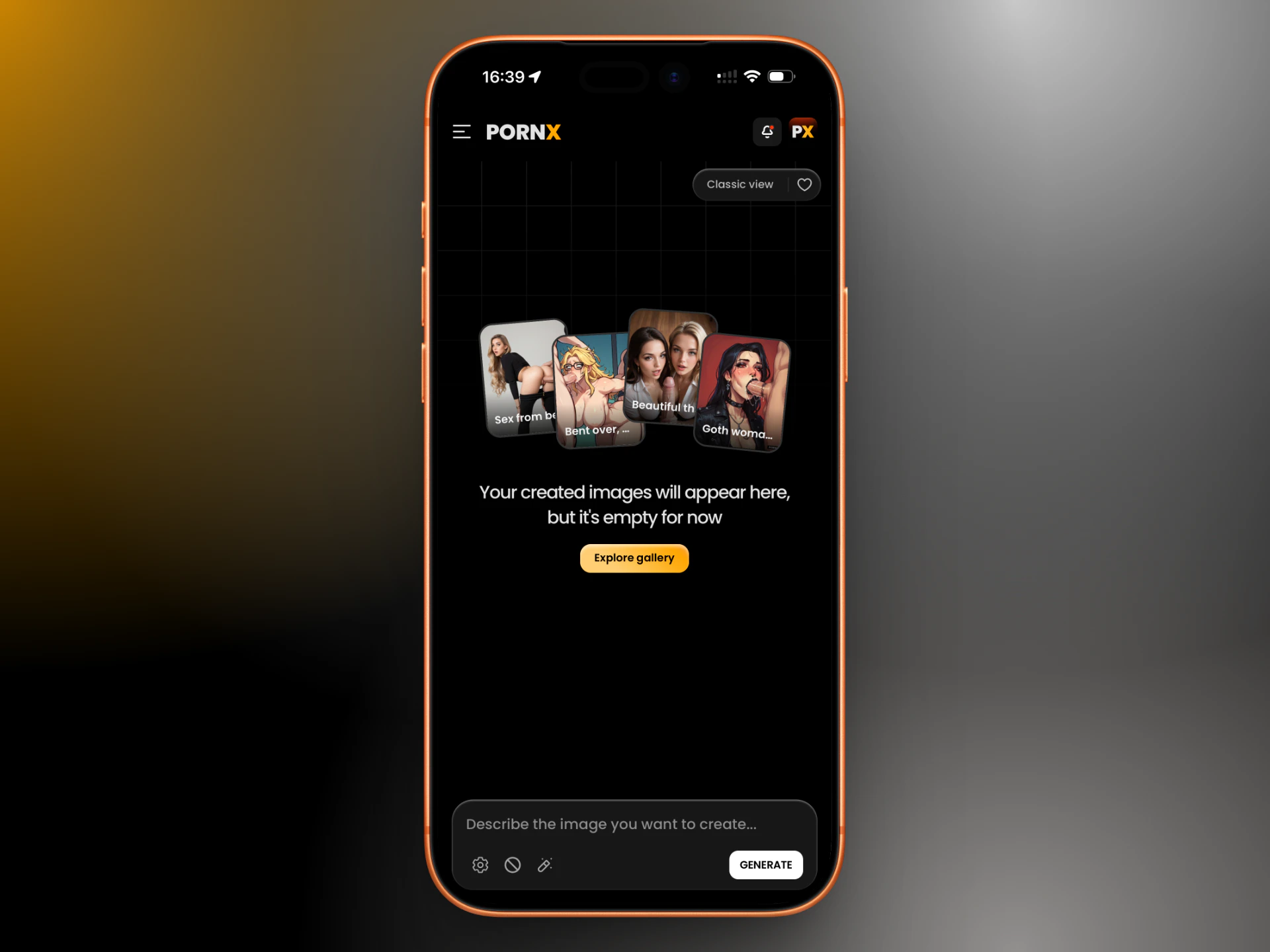
The generation loop
1
Write a prompt
Describe what you want. Subject, action, setting, style. The more specific, the more predictable the result. See Prompting Basics.
2
Choose a model
Each model has a distinct visual style. Realism for photographic output, Anime for illustrated, Cinematic for film-grade lighting, and so on. See Models.
3
Add modifiers (optional)
Layer on a LoRA, a Style pack, or an Action to push the output in a specific direction. These stack on top of the model — they don’t replace it.
4
Set resolution (optional)
The default resolution works for most use cases. Change it if you need a specific aspect ratio or plan to animate the result. See Parameters.
5
Generate
Click Generate. Results appear in your session. Run it again with the same settings to get variations, or adjust and re-run.
What affects the output
Free tier
Free accounts can generate five images per day using Realism and Anime. All other models, LoRAs, Styles, Actions, InPaint, and Private Generation require Premium. See premium.From image to video
Any image you generate can be used as the first frame of a video. This is the primary path into video generation — generate a strong first frame here, then animate it. See Video: Workflow.Models
Pick the right model for your style.
Prompting Basics
Structure a prompt that gets consistent results.
InPaint
Edit a specific area of any generated image.
Video: Workflow
Animate your image into a video.