
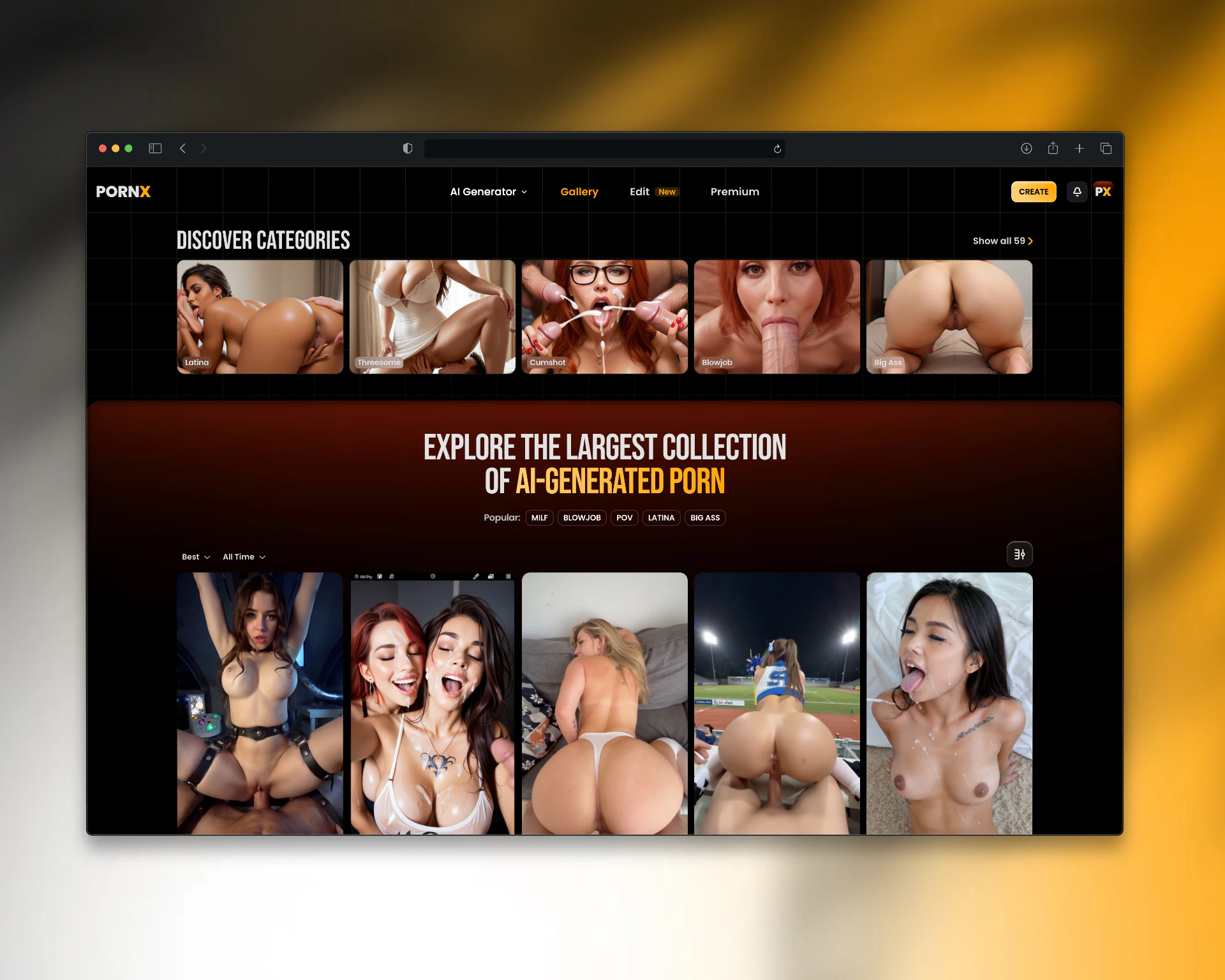
Browsing and discovery
The Gallery opens on a personalized feed. Scroll to load more content. Use the search bar to find specific styles, subjects, or keywords. Every image and video in the Gallery shows the model used to generate it. Click any image to open the full view with generation details.Categories
The Gallery is organized into categories that reflect the most common content types and styles on the platform. Switch between categories using the category bar at the top of the Gallery. You can browse a single category or return to the main feed at any time.How the recommendation algorithm works
The Gallery feed is personalized. The more you use PornX — liking images, saving to collections, generating content — the more the feed reflects your taste. The algorithm surfaces content based on:- Images you’ve liked and saved
- Models and styles you generate with most
- Categories you spend time in
Saving and organizing images
To save an image: Click the save button on any Gallery image o. It goes to your personal collection in your profile. To like an image: Click the upvote button. Likes feed into the recommendation algorithm and help surface similar content. To organize saved images:Using a Gallery image as a starting point
Any Gallery image can be used to start a new generation. Remix — opens the image in the generator with the original model and prompt pre-filled. Edit the prompt or swap the model and generate a variation. Image-to-Video — sends the image directly to the video generator as a first frame. Only works cleanly if the source image was generated with Realism. See Image-to-Video. Videos — community-published videos play inline. You cannot remix a video directly, but you can open the source image if the creator published it alongside the clip. To access these options, open the full image view and click Remix or Animate.Publishing your own generations
Generations are public by default — they appear in the community Gallery as soon as they’re created. Publication is permanent. If you don’t want a generation to appear in the Gallery, enable Private Generation before generating. See Private Generation. Published content must follow the Community Guidelines. What gets published with the image or video:- The user id and name
- The model used
- The prompt, unless you generated with Private Generation enabled
Tips
- Use Remix on Gallery images to reverse-engineer prompts and styles that work
- Save images you want to animate before leaving the Gallery — finding them again in a large feed takes time
- Like content actively in your first few sessions to train the recommendation feed faster
- Browse by category when the main feed starts to feel repetitive
Image-to-Video
Animate a Gallery image into a video clip.
Private Generation
Keep generations off the Gallery entirely.
Prompting Basics
Build on prompts you find in the Gallery.
Community Guidelines
What can and cannot be published.